


Lensa: photo editor & AI art
4.19.34K Reviews
App Specs
- Version
- 6.3.7+882
- Updated On
- License
- Free
- Downloads
- 10,000,000+
- Developer
- Prisma Labs, Inc.
- Categories
- Photography
- Platform
- Android, iOS
Screenshots
 Analysis by AppCompare
I use a photo editor differently depending on the job: sometimes I want a quick portrait touch-up, and sometimes I’m trying to turn a picture into something I’d actually share as artwork. Lensa: photo editor & AI art is aimed at both kinds of creative work, combining selfie adjustments with more dramatic, AI-made interpretations. That mix is its appeal, but it also means the best results come from choosing the right source image and knowing when to stop editing.
A useful starting point for portraits and experiments
Made by Prisma Labs, Inc., Lensa is a free photography app for Android and iOS. It has a 4.1 average from around 195,000 ratings, and more than 10 million installs. The app is rated for Everyone, so it is broadly accessible, though its creative tools will matter most to people who regularly take portraits, selfies, or pictures they want to stylize.
I’d reach for it when I have a clear photo and a specific goal: soften a distracting background, make a selfie look a little more polished, or explore an art-like version of a landscape. It is less useful when I need precise, layer-by-layer retouching or a full desktop-style workflow. If I’m preparing a carefully controlled composite, I’d choose an editor built around selections and layers; Lensa is more appealing when speed and a visible transformation matter more than granular control.
A practical way to begin is to make a copy of the original image and work from that, especially if I’m testing a strong look. I first check whether the face or main subject is clear and well lit. No automated effect can reliably rescue every blurry or poorly exposed shot, and a clean starting point gives the app a better chance of producing a result I want to keep.
Getting Started with Lensa
The moment you open Lensa, you’re greeted with a sleek, user-friendly interface. It feels like a breath of fresh air compared to some of the overly complicated editors out there. I mean, who needs a degree in rocket science just to crop a photo, right?
After downloading it from the app store, I was pleasantly surprised by how intuitive the setup process was. Within minutes, I was ready to explore its features. And let me tell you, this app packs a punch with what it offers.
Features That Stand Out
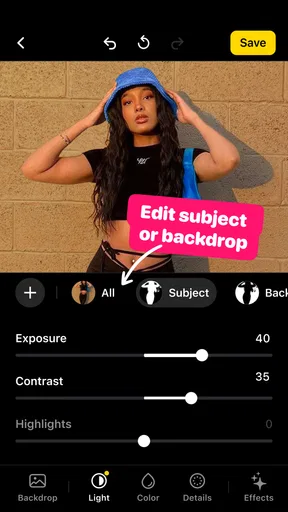
First things first, the AI-powered editing tools are nothing short of amazing. The app automates a lot of the tedious editing tasks, which is perfect for someone like me who doesn’t have endless hours to spend on each photo. But don’t think for a second that automation means a lack of control. Lensa gives you the freedom to tweak settings to your heart’s content.
Worth Reading Before You Choose

EA SPORTS FC Mobile 26 Is a Bigger Football Game, but It Takes Time

Flipboard Shows What News Apps Must Do Beyond the Feed

Switching to Android Auto Means Rethinking Your Driving Routine

Google Calendar Makes a Crowded Week Easier to Manage

Ludo King Makes the Most of the Minutes Between Plans

Baby Panda World Brings Quick Play to Modern Phones, but Its Game Library Feels Busy
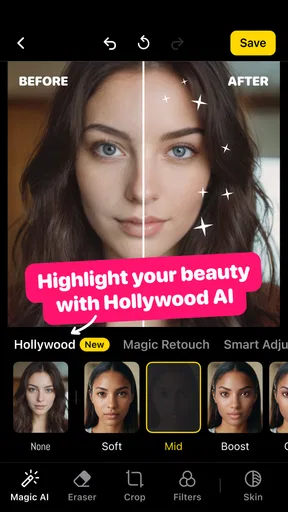
One of my personal favorites is the skin editor. Who doesn’t want to look their best in selfies? Lensa smooths out imperfections with just a few taps without making you look like a plastic doll. And that’s a win in my book!
Then there’s the background blur feature, which allows you to create a professional-looking depth effect. It’s like having a DSLR in your pocket. The AI is pretty smart about detecting edges, so your subjects remain in sharp focus while the background gets that dreamy out-of-focus look.
Making an edit that still looks like your photo
For portraits, I prefer to apply small changes first and then inspect the result at normal viewing size. A face can look flattering in a close-up preview but oddly smooth once it appears in a feed or group chat. I treat skin adjustment as a finishing touch, not a replacement for good light; keeping some natural texture helps the person remain recognizable.
The same restraint applies to blur. It can draw attention to a face, but busy hair, glasses, or a hand near the subject can make an artificial edge more noticeable. Before saving, I look around the outline rather than only at the face. If the separation looks distracting, I’d rather reduce the effect or use the unblurred photo than pretend the result is more convincing than it is.
For a quick everyday example, imagine taking a portrait outside after work, with a bright sign or a cluttered street behind your friend. I’d try a mild blur, make a modest skin adjustment, and compare the edited image with the original before sharing. That short check is a useful safeguard against turning an ordinary candid into a picture that feels overly processed.
Transforming Photos into Art
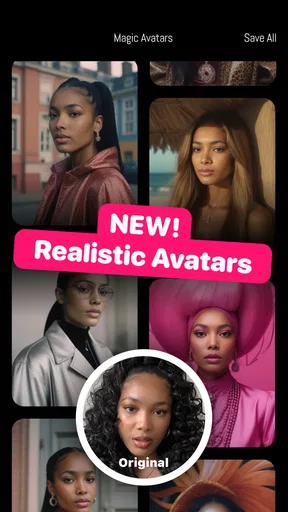
Now, let’s talk about the real showstopper—Lensa’s ability to turn your photos into AI-generated art. This isn’t just slapping a filter on top; it’s a full-on transformation. I tried it with a few landscape shots, and the results were downright impressive. It felt like I was looking at a painting rather than a photograph.
The app offers a variety of artistic styles to choose from, each with its own unique flair. Whether you’re into Van Gogh-esque swirls or something more abstract, there’s something here to tickle your creative fancy. It’s an exciting way to breathe new life into your photo gallery.
I find stylization works best when I decide what the image is meant to become before choosing a look. A landscape with a strong silhouette or a simple arrangement of color can make a clearer starting point than a crowded scene with many competing details. I also keep the original nearby: the artistic version may be more eye-catching, while the photograph may communicate the place or moment more faithfully.
That distinction matters if the image is for a specific purpose. For a personal post, a striking interpretation can be the point. For a portfolio, a client handoff, or anything where accuracy matters, I would label the result clearly as an artistic treatment and keep the untouched photo available. Lensa is a creative tool, not a substitute for documentary accuracy.
When I’m comparing styles, I avoid judging only by which preview looks most dramatic. I ask whether the subject remains recognizable and whether the treatment suits the mood I want. A subtler choice can be easier to reuse across a set of pictures, while a highly distinctive one may work better as a one-off image.
Easy Sharing and Accessibility
Once you’ve crafted your masterpiece, sharing it is a breeze. Lensa integrates seamlessly with social media platforms, so you can flaunt your creations to the world with just a few taps. Plus, it saves your edits in high resolution, which is perfect if you’re planning to print or blow them up on a big screen.
The app is available on both Android and iOS, which means no one is left out of the fun. And for those who are concerned about storage space, Lensa doesn’t hog your phone’s memory, keeping things light and efficient.
For a creator, the handoff is not just tapping share; it is making sure the right version reaches the right place. I’d save a finished edit with a name or album that distinguishes it from the original, then open the saved image once before posting or sending it. That quick check can catch an accidental crop or an edit that looks different from the preview. If I’m delivering work to someone else, I’d include the original as well when they may want to make their own choices later.
People often wonder whether Lensa is free to try and whether every tool is included at no cost. It is free to download, but it also offers in-app purchases ranging from $0.99 to $79.99 per item, so I would check the price shown for a feature before committing. The current version is 6.2.5+855, and it requires Android 10 or later on Android devices. Those details make it worth checking compatibility and purchase prompts before building a regular workflow around it.
Compared with a general-purpose editor, Lensa puts more emphasis on portrait polish and AI-driven style than on meticulous manual correction. A conventional editor may be the better choice when I need to correct color precisely, work with many layers, or keep edits consistent across a large batch. Lensa makes more sense when I want a quick result on my phone and enjoy seeing how an automated treatment interprets a photo.
When Lensa fits—and when I’d choose something else
I’d recommend it to people who make casual social content, like trying different visual treatments, or want an approachable way to improve a selfie without learning a complicated editing system. It is also a fun option for turning a personal landscape into a more expressive image. The strongest reason to keep it handy is that one app can take a picture from a straightforward portrait edit to a more imaginative visual experiment.
I’d skip it as my main tool if my work depends on exact retouching, repeatable color values, or careful control over individual parts of an image. Automated results can be uneven around complicated outlines, and an artistic transformation can change details that matter. For those jobs, I’d use a manual editor and treat Lensa as an optional finishing or idea-generating step instead.
For everyday use, I would also think about how much editing a photo actually needs. If the original already tells the story, a strong effect may distract from it. A quick comparison between the untouched image and the edited one is more useful than simply adding another adjustment because it is available.
Final Thoughts
So, is Lensa: photo editor & AI art worth your time and data? Absolutely! It’s a versatile app that caters to both casual users and those looking to get a bit more creative with their edits. The combination of powerful AI tools and artistic transformations makes it a standout choice in the crowded world of photo editing apps.
Whether you’re snapping selfies, capturing landscapes, or just looking to have some fun with your photos, Lensa offers a delightful experience that’s hard to beat. So go ahead, give it a try, and unleash your inner artist!
My practical recommendation is to approach it as a fast creative partner rather than an all-purpose photo studio: start with a strong image, make restrained portrait changes, and keep the original when you experiment with an artistic treatment. That workflow helps me get the convenience without giving up the character of the photograph.
In short, I’d choose Lensa when I want a phone-based edit that feels immediate and expressive, and I’d reach for a more manual alternative when precision is the whole point. Its free entry makes it easy to explore, while the in-app purchase range is a reason to check costs before relying on paid options. For the right kind of creator, that balance makes it worth a try.
Pros
- Intuitive user interface for easy navigation.
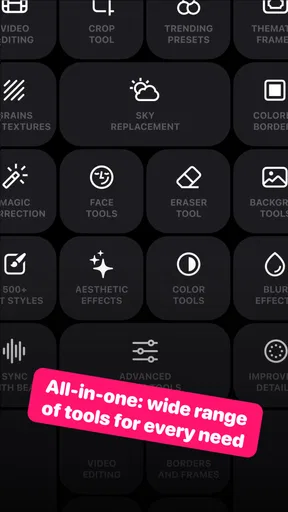
- Wide range of editing tools available.
- AI features enhance photo quality.
- Frequent updates with new filters.
- Seamless sharing to social media platforms.
Cons
- Premium features require a subscription.
- Occasional app crashes reported.
- AI edits may lack customization.
- High battery usage during editing.
- Large app size can consume storage.
FAQs for Lensa: photo editor & AI art
What features does Lensa offer for photo editing?
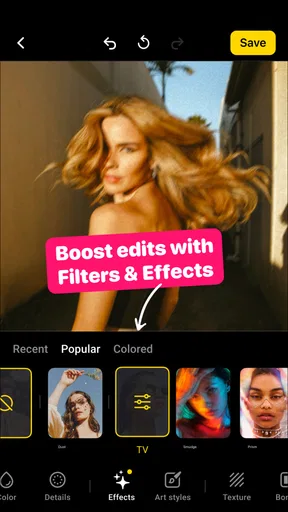
Lensa provides a variety of photo editing tools, including advanced filters, background blurring, and facial touch-up options. It also offers AI-enhanced features for improving image quality and adding artistic elements. Users can adjust brightness, contrast, and saturation, making it suitable for both casual and professional photo editing.
Is Lensa suitable for beginners in photo editing?
Yes, Lensa is designed to be user-friendly for beginners. Its intuitive interface and easy-to-use tools allow users to edit photos without a steep learning curve. The app also offers one-tap enhancement features, enabling users to quickly improve their photos with minimal effort.
How does the AI art feature work in Lensa?
The AI art feature in Lensa uses artificial intelligence to transform photos into artistic renditions. Users can choose from various art styles, and the AI algorithm automatically applies the selected style to the photo, creating unique and visually striking results. This is ideal for those looking to experiment with creative photo modifications.
What are the subscription options for Lensa?
Lensa offers a free version with basic features and a subscription-based model for access to premium features. The subscription provides additional tools, filters, and unlimited access to AI features. Pricing varies by region and can be purchased monthly or annually, with a free trial typically available for new users.
Does Lensa store or share my photos?
Lensa prioritizes user privacy and does not store or share photos without explicit consent. The app processes images locally on your device, ensuring that your photos remain private. Users concerned about data privacy can review Lensa’s privacy policy for more detailed information on data handling practices.


